
MIYABIRA · REVIEW
Read it as structured.
Confirm it with confidence.
Read eCTD as structured — documents, attributes and review notes on one surface.
Review submission packages while preserving their full structure. Status, checksum, region, and version are shown alongside every document. Capture what you notice as a note, right where you see it.
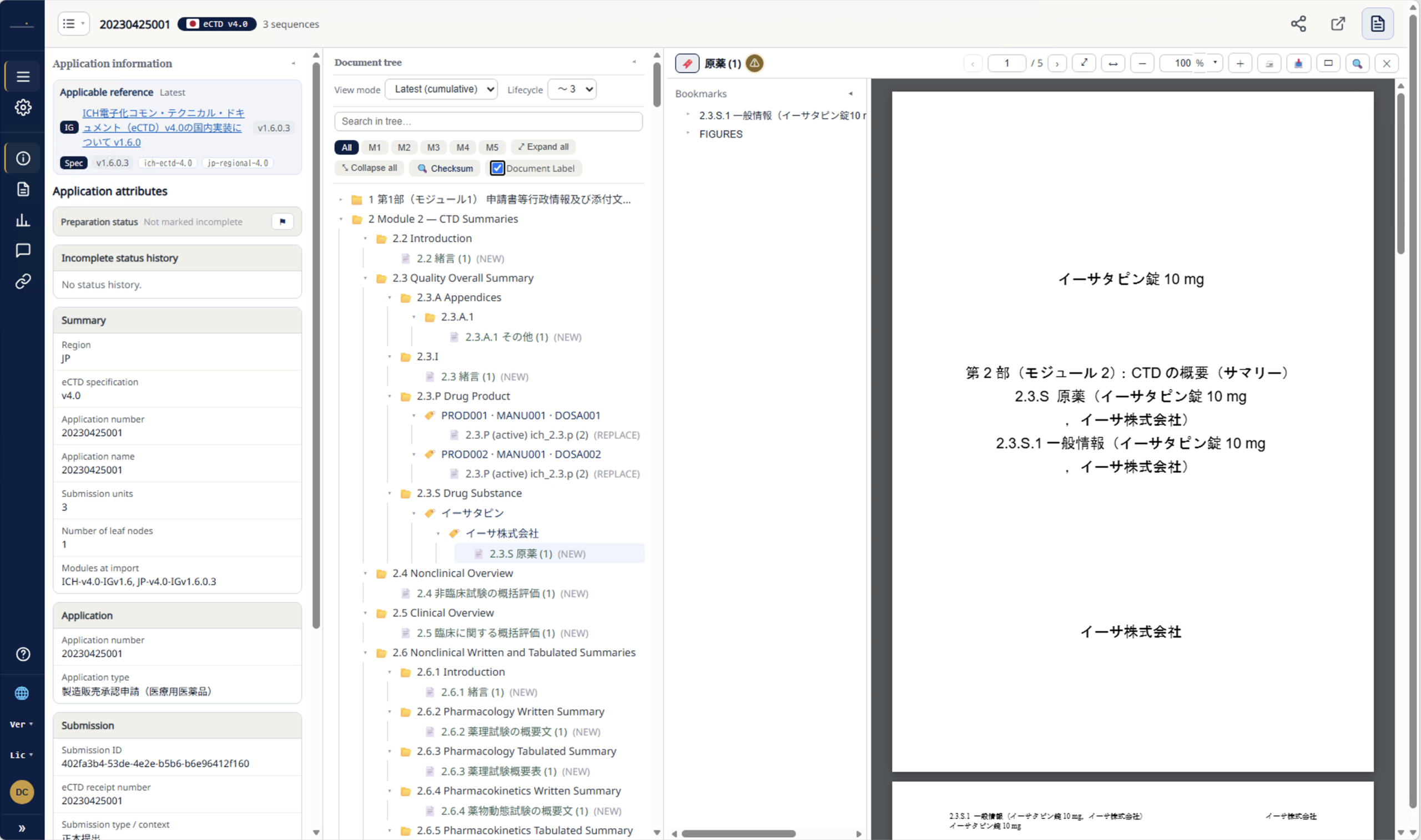
Everything a review needs,
on one surface.
01
List & Select
Choose your review target from a list of submissions and packages.
02
Structure Tree
View documents directly while preserving the full eCTD structure as a tree.
03
Attribute Details
Check status, checksum, region, and version alongside each document.
04
Review Notes
Capture what you notice as a note, right where you see it.
View
Thousands of files,
still organized as a table of contents. Six ways to view it.
- View the full set of M1–M5 documents in the exact table-of-contents hierarchy used at submission
- See the current state in “Cumulative,” or trace the history of replacements in “Full History” and “Lifecycle”
- “Composition Check” flags expected slots where a document is missing
- Documents referenced from nowhere are never lost — they land in a dedicated holding view
- In-tree search and sequence-range filtering, both one tap away
“Which submission brought this version to where it is?”
The screen answers the first question a reviewer asks.
Module 1 — Administrative Information & Prescribing Information
Module 2 — CTD Summaries
2.3 Quality Overall Summary
2.5 Clinical Overview
Module 3 — Quality
Module 5 — Clinical Study Reports
Illustrative document tree, based on the actual interface
Verify
Confirm what’s correct,
with a single click.
Checksum Verification
Compares each file’s fingerprint to detect tampering or corruption, reported across four states — down to distinguishing “unable to verify” from “no record on file.”
Composition Check & Ingestion Integrity
Flags missing slots against the specification’s table of contents. Submissions still mid-ingestion are clearly marked “incomplete.”
Applicable Rules, Explicit
Shows exactly which rule version — implementation guide, specification — this submission follows, with a link to the health authority’s own documentation.
Document Attribute Details
Title, ID, priority number, status, operation type — v4.0 context-of-use (CoU) details, available for every document.
Status, checksum, region, version — the facts are always right there on screen.
Regional
Submission details, shown
exactly as each region defines them.
Japan in Japan’s own terms; the US and EU in their own rules. The same screen adapts its shape to each region’s submission data.
JP Japan
20230425001eCTD Specification
v4.0
Application Type
Marketing Authorization Application (Prescription Drug)
Applicable Rules
JP Regional 4.0 (IG v1.6.0)
Shown exactly as Japan’s own rules define it
US United States
777777eCTD Specification
v4.0
Application Type
Drug Master File (MF)
Applicable Rules
US Regional 4.0 (FDA IG v1.8)
Shown exactly as US rules and terminology define it
EU Europe
EMEA/H/C/000123eCTD Specification
v4.0
Application Type
New active substance – Art 8(3)
Applicable Rules
EU Regional 4.0 (Practical Guidance v1)
Shown exactly as EU rules and numbering define it
01
Review
Read and confirm, structure fully preserved
02
Trace
Who, what, and which version
Govern
Built to satisfy administrators
and auditors alike.
Fine-Grained Permissions
Role × submission × document permissions, with temporary access grants available. A view-only mode blocks printing and downloading.
An Audit Trail That Never Disappears
Every action is logged. Even when a departed employee’s personal data is removed, the traceability of the audit trail is preserved. Errors carry a reference number for investigation.
Designed to Expand Later
Region × specification “parsing rules” are added as modules. New regions and new versions are supported without any replacement work.
Version Control for Official Data
Health authority glossaries, implementation guides, and specifications are registered as official data, with version and provenance tracked — so the screen always reflects the correct rules.
Usage Visibility
Review license and usage status by organization through reports, with alerts as you approach any limit.
Never Lost for What to Do Next
A help center, FAQ, and glossary are always available on screen. Support requests are tracked quickly by reference number.
Coverage
See exactly how far it goes,
at a glance.
Specification
eCTD v4.0 / v3.2.2
Regions
Japan, US, Europe (expanding)
Interface Languages
Japanese, English, Chinese
Usage
Standalone or paired with Publish
- Japan’s v4.0 submissions display application type, submission type, and category events per domestic conventions
- US and EU v4.0 submissions display in their own respective rule sets (application types, tracking numbers, etc.)
- Legacy v3.2.2 packages can be browsed and checksum-verified in the same tree
- Adding a region is a matter of adding parsing rules — the interface and workflow stay exactly the same
Same screen, same workflow — only the covered regions keep growing. That’s how this product is built to grow.
Strengths
Three strengths
of Miyabira Review.
01
Read It as Structured
The essential reading tool for the v4.0 era. Six ways to view your data, in a lightweight interface that instantly reveals a package’s current state and history.
Making “Correctness” Visible
Checksum verification, composition checks, explicit applicable rules, and audit trails — the facts stay visible on screen at all times.
03
Built to Support Human Judgment
Notes you pin, reply to, and resolve. Translation and AI are treated strictly as drafts — the final call is always made by a person, in keeping with regulatory practice.
One continuous flow with Miyabira Publish on the creation side. Works standalone, or together.
See a Demo of
Miyabira Review
A dedicated environment for reviewing submissions while preserving their full structure. We’re also happy to discuss adoption or pairing this with our sister product, Miyabira Publish.
Comment
Pin what you notice, right where it is.
Reply, and resolve it.
Four ways to pin a note
A region on the page
Draw a box around what caught your eye
A bookmark item
For notes on a chapter or section
Selected text
For notes on specific wording
A whole section
Right-click to note an entire chapter
Switch the notes view between “File / Module / All.” Notes on the submission as a whole are also supported.
From note to resolution — all on screen
Write a note
Reply and discuss
Mark it “Resolved”
Whose note got resolved, and how far along it went — the full exchange stays attached to the submission.